UDISE+ Teacher Data Entry: A Troubleshooting Guide
Entering teacher information in UDISE+ is one of the key tasks school staff must do every year. This includes adding new teachers, updating details, marking status changes, and fixing errors when they happen. Every school must do this correctly so their records are complete and accurate.
If you’ve ever got stuck while entering teacher data in UDISE+, this guide will help you fix common problems and work faster—just like talking to a friend and solving it together.
What Is the UDISE+ Teacher Module?
UDISE+ has many different sections (modules) like student data, profile & facility, and teacher data. The Teacher Module is where you:
This module keeps all your teacher information organized and helps the education authorities plan better.
you can also read about: Teacher Module in UDISE+
Common Issues in Teacher Data Entry — and How to Fix Them
Here are the frequent problems schools face and simple ways to fix them.
Can’t Log In to the Teacher Module
This is the first issue many people face.
Why it happens:
Wrong username
Incorrect password
Captcha errors
Using the wrong module login page
How to fix it:
Your username is your 11‑digit UDISE code (sometimes older codes had 10 digits—add 0 in front).
Use the password given by your Block/District MIS Coordinator.
Enter the captcha carefully (case‑sensitive).
If the password is expired or forgotten, use Forgot Password or ask your Block/District MIS team to reset it.
Make sure you are on the Teacher Module login page, not another part of UDISE+.
Quick Tip:
Try logging in using another browser or private mode if the page keeps refreshing or showing errors.
Data Won’t Save or Shows Errors After Entry
This happens when required fields are missing or information is in the wrong format.
Common mistakes:
Blank mandatory fields
Wrong date format (like date of birth)
Aadhaar number entered incorrectly
How to fix it:
Fill all required fields carefully before saving.
Use the correct formats mentioned on the portal.
Double‑check Aadhaar or service details before submitting.
“No Data Found” or Blank Records
Sometimes the system won’t show records you expect.
Why it happens:
Teacher profiles not added properly
Data not synced across modules
How to fix it:
Go back to the Teacher Module and confirm that all teacher records were saved.
If you just added or updated data, log out and log in again to refresh the information.
If it still doesn’t appear, contact your Block/District MIS Coordinator—they can check for syncing problems.
Incomplete or Wrong Details After Submission
This can be frustrating, especially when a teacher’s information looks good but is still incorrect.
Why it happens:
Data validation failure
Uploading incomplete forms
How to fix it:
After entering data, always review every field before submitting to avoid mistakes.
If something is wrong, go back and edit it right away before final certification.
How to Avoid Common Teacher Data Entry Issues
One of the best ways to avoid errors is to review everything before submitting. Go over each teacher’s details carefully, especially when you are dealing with a lot of data at once.
Why this works:
Helps avoid simple mistakes, like typos in names or wrong class assignments.
Ensures all required fields are filled out correctly.
Saves time when finalizing or correcting the submission later.
It’s easy to make formatting mistakes, but these small issues can cause big problems. For example, ensure that dates of birth are in the correct format: DD-MM-YYYY. If the system requires a 10-digit Aadhaar number, don’t enter anything extra.
Why this works:
Reduces errors during validation checks.
Ensures that data appears correctly in the system.
Makes the final submission smoother.
Don’t wait until you’re finished entering all the data to save it. Save your work after every teacher entry. This way, if the system crashes or a mistake occurs, you won’t lose all your progress.
Why this works:
Protects your work in case of technical glitches.
Allows you to quickly go back and correct errors after each save.
Every time you add or edit teacher data, follow the official process outlined on the UDISE+ platform. This may include filling out a specific form, uploading documents, or confirming teacher qualifications. Stick to the process to avoid mistakes.
Why this works:
Guarantees that your submission follows the guidelines.
Helps prevent unnecessary rework or data rejection.
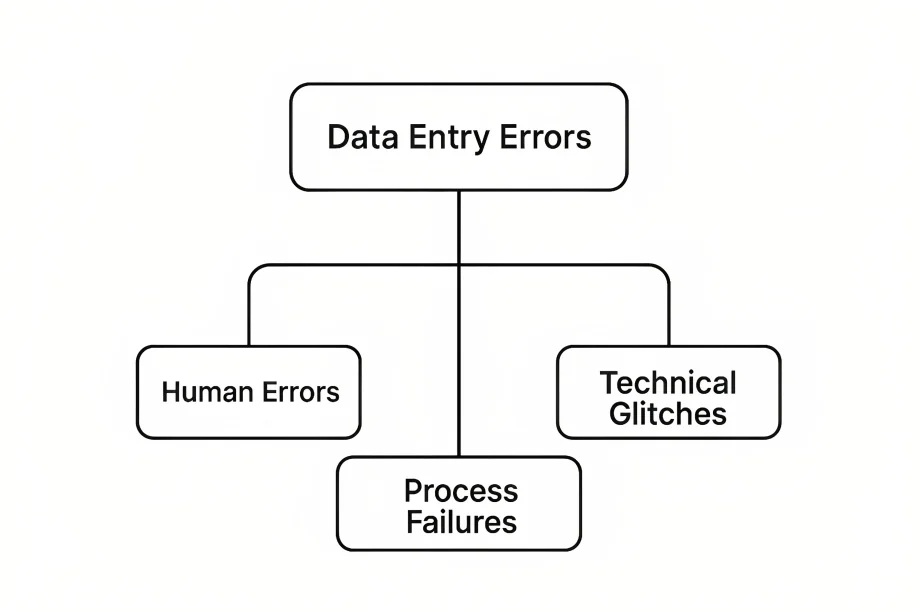
Tips to Avoid Teacher Data Entry Errors
Here are some really helpful shortcuts and habits:
FAQ’s
Final Words
Working with the UDISE+ teacher module doesn’t have to be scary. It’s like managing folders and notes in a big filing cabinet — once you know where everything goes and how to find it, the whole job becomes smooth and fast.
Start by getting your logins right, make sure your entries are complete and correct, and keep checking your work before final submission. With practice, you’ll soon be able to handle teacher data entry without stress. And if you get stuck, these troubleshooting tips and FAQs will help you get back on track quickly.