Offline Data Entry in UDISE Plus: Syncing Issues Explained
If you’re responsible for your school’s data in UDISE Plus and you’re using the “offline data entry” option (because internet is slow or you’re working remotely) — you’re doing the right thing. But sometimes the data you enter offline doesn’t sync correctly when you go back online. Let’s walk through what the issue is, why it happens, how to fix it, and how to avoid it in the future.
What is Offline Data Entry & Why Use It
Offline data entry means you fill in the data (student enrolments, facilities, teacher records etc.) in a local mode (Excel sheet or offline DCF) when internet is unreliable.
Then, when connectivity returns, you upload or sync the data into the UDISE Plus portal.
This option is provided because many schools – especially in rural areas – have intermittent or poor internet connectivity.
For example, states have official guidelines saying: “Schools that do not have any internet access shall fill the offline DCF and then the entered offline data will be uploaded by the Block MIS Coordinator.” WBHM News+1
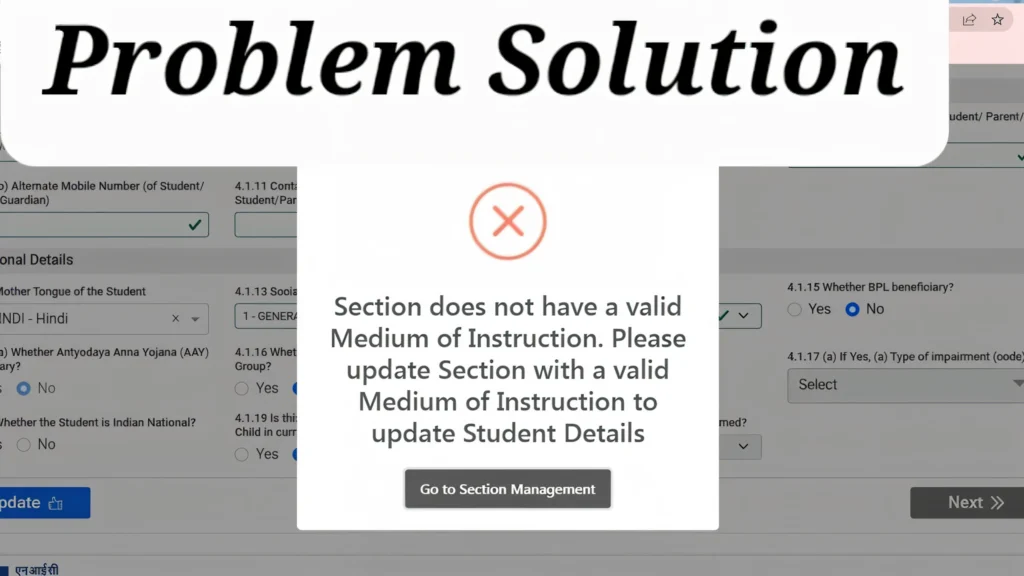
Common Syncing Issues & What They Look Like
Here are the typical problems schools face when syncing offline data into UDISE Plus:
Why These Syncing Issues Happen
Some reasons behind syncing issues include:
Step‑by‑Step: How to Fix Syncing Issues
Here’s what you can do if your offline data isn’t syncing properly:
Check the Offline Form Version
Ensure you used the correct Data Capture Format (DCF) or offline template for your state and academic year.
If your form is from previous year or older version, ask Block/District MIS for latest version.
Upload Carefully
After you finish offline entry, log in, go to the “Offline Upload” section (or as per your state portal).
Monitor the upload process: see if there are error reports/rows rejected.
If the upload fails, capture screenshot or use “log report” if available.
Follow Up After Upload
Wait a few hours or a day and then log in to check the data in the portal.
If still not reflected, check the status of your submission (pending, approved, rejected).
Ask Block MIS if the upload you did is visible in their queue.
Resolve Validation Errors
If you see “rows rejected”, download the rejection report (if given) and fix those rows offline and re‑upload.
Pay attention to mandatory fields, codes for management, category, class, etc.
Ensure the Role & Permissions
Confirm you have rights to upload offline entry. Sometimes upload has to be done by a higher‑level role (Block MIS) rather than the school.
If you don’t have that role, coordinate with your MIS coordinator.
Use Good Connectivity & Browser
Upload using a stable internet connection (avoid mobile data in weak network).
Use a supported browser (Chrome, Edge, Firefox) and clear cache to avoid time‑outs.
Document Everything
Keep a log: when you entered offline, when you uploaded, any screenshots of success/failure.
This helps if the data is missing later and you need to show proof you submitted.
Pro Tips to Reduce Future Offline Sync Issues
FAQ’s
Final Words
Offline data entry in UDISE Plus is a great solution for schools with connectivity challenges — but syncing it properly is just as important. If your data sits offline, un‑uploaded, un‑validated, or rejected, you might as well not have entered it. That defeats the purpose.
Think of the sequence like: enter → upload → verify. If any step breaks, your data may not reflect. By following the steps above — using correct templates, uploading carefully, checking for errors, coordinating with your MIS, using good connectivity — you can make offline entry work effectively.
If your school handles offline entry well, you’ll avoid last‑minute rushes, avoid data missing in the portal, and ensure your school’s profile is accurate and up‑to‑date.


