Non‑Teaching Staff in the UDISE Plus Teacher Module
Hey — if you’re managing your school’s data in the Teacher Module of UDISE Plus, you’ve probably noticed that non‑teaching staff (like clerks, lab assistants, librarians, peons, office assistants) often get overlooked. That can leave big gaps in your data, which affects everything from staffing counts to funding and compliance.
Let’s walk through what those gaps are, why they matter, how to fix them — and how to keep them from happening again.

What we mean by “non‑teaching staff gaps”
In UDISE Plus, under the Teacher Module you’ll find a section for non‑teaching staff. These are essential support people who help the school run smoothly, but they’re not counted under “teachers.”
Gaps happen when:
Their data is missing (name, post, date of joining)
They’re listed under “teacher” instead of “non‑teaching” by mistake
Their status (left school / transferred) isn’t updated, so they still show as active
Using wrong appointment type, wrong post, or missing vital info like Aadhaar or staff code (if required)
These issues can cause discrepancies in the data, affecting your school’s overall record and reporting.
Why filling this data matters
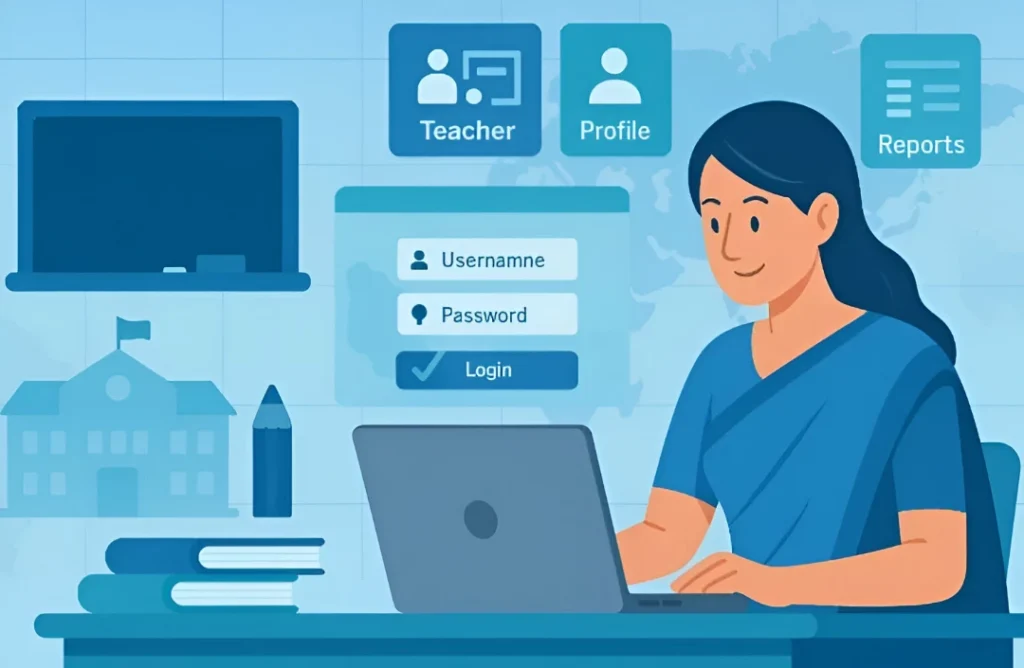
Step‑by‑Step: How to fill or fix non‑teaching staff gaps
Here’s a simple workflow to get this done cleanly:
Log in to the UDISE Plus Teacher Module for your school.
From the dashboard, choose the option “Add Non‑Teaching Staff” or the relevant section.
For each non‑teaching staff member, enter:
Date of joining / appointment, and last working day if they left
Name, gender, date of birth
Aadhaar number (if required)
Post/position (e.g., Librarian, Lab Assistant, Peon, Clerk)
If someone has left the school, mark their status as “Left School” or equivalent, and enter reason (resignation, retirement, transfer) so they don’t count as active.
After entering, save and submit the data, then run a quick report to see that the numbers look right — no blank entries, no duplicates.
Maintain a simple log sheet (even offline) of non‑teaching staff entries: name, post, date entered, last update. This helps you track who’s missing or needs update.
Common mistake scenarios & how to avoid them
| Mistake | Why it happens | How to avoid/fix |
|---|---|---|
| Non‑teaching staff entered as “teaching” | Staff code/post not updated, default selection | Always choose correct post from dropdown when adding |
| Missing staff entirely | New staff joined but data entry delayed | Make it part of your monthly checklist to update new staff |
| Staff left but still listed as active | Status not changed to “left” or “transferred” | Update status the moment they leave; run monthly review |
| Duplicate entries | Same person entered again with slight variation | Before adding check existing list; merge duplicates |
| Required fields blank (Aadhaar, date of joining) | Copy‑paste missing data or rushed entry | Use form checklist: all fields must be filled before save |
Tips to prevent gaps in the future
At the start of each academic year, verify your support‑staff list: check how many you have, how many need to be added or removed.
Assign a data‑entry buddy for non‑teaching staff, just like you have for teachers — it ensures someone is responsible.
Use a simple monthly review: at the end of each month check “Number of non‑teaching staff in position” in your reports and match with your local records.
Keep all appointment/exit records of support staff in one folder. When someone leaves, update UDISE the next day.
Familiarise yourself with the post‑dropdown list in UDISE Teacher Module so you pick the correct post every time.
Ensure your internet connection/back‑up is stable when doing bulk additions or edits — errors happen when connection is weak.
Frequently Asked Questions (FAQs)
Final Words
Support‑staff matter — even though they’re non‑teaching, they keep your school functioning. By taking a little time to keep their data accurate in UDISE Plus, you ensure your school’s records are complete, you avoid headaches later, and you help your team focus on the real job: educating students.
If you’d like, I can create a printable checklist specifically for non‑teaching staff data entry (posts, fields to check, common errors) that you can use every year. Want me to set that up for you