UDISE Plus Login Issues, how to resolve them
Have you ever tried logging into UDISE Plus and ended up frustrated — wrong credentials, captcha errors, or nothing showing up at all? You’re not alone. Many teachers and school staff face login problems with UDISE+, especially when trying to access the Student, Teacher, or Profile modules. Good news: most issues have easy fixes. Let’s walk through them together.
Common Login Problems
Here are the typical login issues people run into:
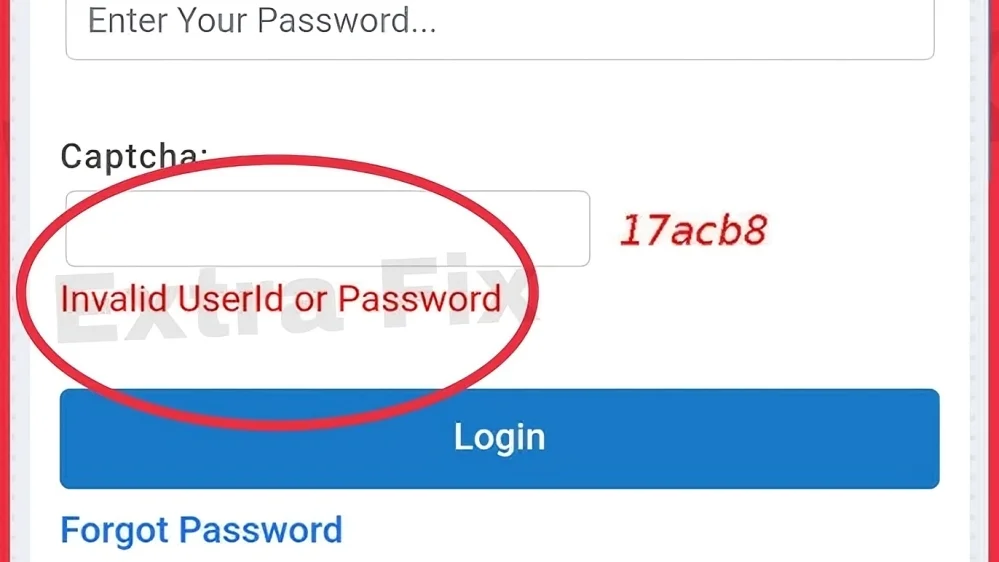
“Invalid credentials” — username or password not accepted.
Captcha keeps failing, even when entered correctly.
Using the wrong UDISE module — trying to log in via Teacher module while credentials belong to Student/SDMS (or vice versa).
On Student Module (SDMS), login fails because the wrong state was selected from the dropdown.
Password expired or account locked — maybe you forgot to reset the default password when first logging in.
How to Fix UDISE Plus Login Issues — Step by Step
Here’s a handy checklist to troubleshoot most login problems:
On the main UDISE+ portal, choose the correct module: Teacher, Student (SDMS), Profile/Facility, or UD (User Management). Attempting login under the wrong module triggers “invalid credentials.”
Your username is usually the 11‑digit school UDISE code. If you have an old 10‑digit code, prefix it with a 0.
The password is given by your Block/District MIS coordinator. If it’s your first login, change it immediately.
Captchas can be case-sensitive. If it keeps failing, refresh the captcha and type carefully.
If your browser is causing issues (like autofill messing things up), clear your cache or try in incognito mode.
On SDMS login, first select your state from the dropdown, then click “Go” — selecting the wrong state often rejects valid credentials.
Forgot your password? Click “Forgot Password” — you’ll get an OTP on the registered mobile to reset. If your mobile number changed, you’ll need Block/District MIS to update it.
Sometimes login works, but you don’t see the Teacher/Student/Profile options. This might be due to an incorrect module or permissions issue. Ask your admin or MIS for correct access.
Pro Tips & Good Habits
Always note down your UDISE code (11 digits). Many login issues happen because of a missing leading zero.
When copying passwords or captcha codes, avoid copying extra spaces or invisible characters.
Use a modern browser (like Chrome or Firefox) and clear your cache if login doesn’t work.
If you change your school‑registered mobile number, inform your MIS team to avoid OTP reset issues.
Keep a backup of login details securely (don’t share). It’s helpful when staff changes or mobile updates occur.
How to Avoid Future Login Issues
To avoid facing login problems again, follow these preventive tips:
Regularly update your password — for security and to ensure the system accepts it without issues.
Confirm your account status — make sure your account is active and not locked out due to inactivity or errors.
Stay in touch with your MIS — ensure that your UDISE code and personal contact details are up to date in the system.
Check for updates — UDISE Plus might roll out updates or changes to its platform, so it’s a good idea to stay informed.
Troubleshooting UDISE Plus Login Issues: Common Mistakes
Here are a few common mistakes schools make that can lead to login issues:
you can also read: Fixing School Profile Errors in UDISE Plus
FAQ’s
Final Words
UDISE Plus login issues are pretty common but can easily be fixed with the right steps. Whether it’s correcting your UDISE code, choosing the right module, or clearing captcha errors, a little patience and attention to detail can go a long way. If you run into trouble, just remember to follow the steps mentioned above, and you’ll be back on track in no time!