How to Fix “Invalid Credentials” in UDISE+ Login
Logging into UDISE+ should be straightforward, but many school users face the problem where the system shows “invalid credentials” even when you think you typed everything correctly. Don’t worry — this is a common issue, and you can usually fix it quickly with a few clear checks and simple adjustments.
What “Invalid Credentials” Really Means
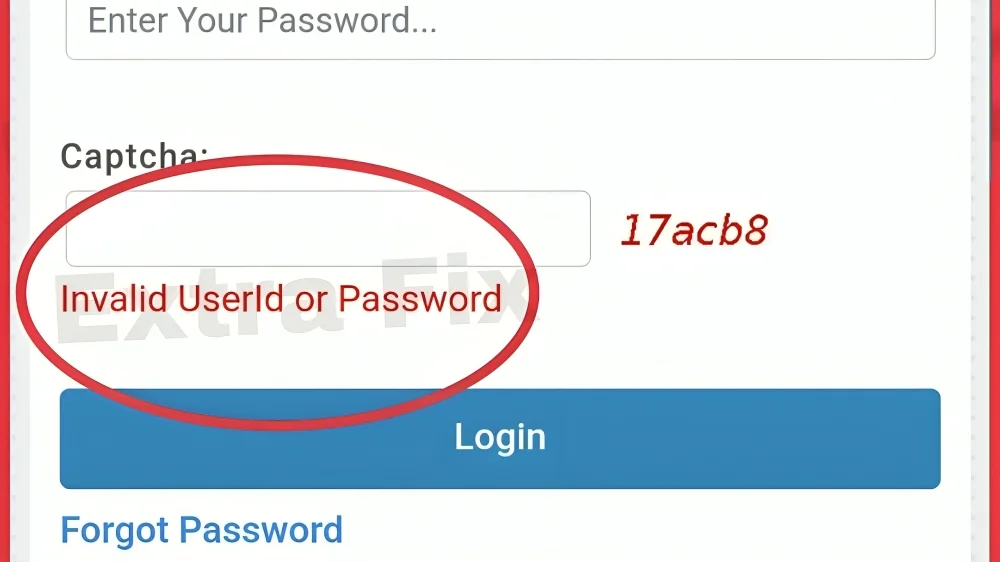
When UDISE+ says invalid credentials, it usually means the system doesn’t recognize the username and password you entered together. It could be a small detail like a wrong number, wrong module selection, or an outdated mobile number used for password reset.
Common Causes of Invalid Credentials
Here are the things that most often cause login trouble:
UDISE+ has different sections (modules) like School Directory, SDMS (Student Module), Teacher, Profile & Facility, etc. If you’re trying to log into the Student Module but your credentials belong to another module, it won’t accept them. Also, in the Student Module you must pick your correct state first before entering your login details.
For many UDISE+ logins, your username is the school’s 11‑digit UDISE code. In older records the code might be 10 digits. If your code is 10 digits, adding a leading zero often fixes the “invalid credentials” problem.
Passwords can expire or get mistyped. Many states require you to reset the password regularly. If the password doesn’t match what’s in the system, you will see the invalid credentials message.
UDISE+ sends OTPs (one‑time passwords) to the registered mobile number if you use “Forgot Password.” If that phone number is old or changed, you won’t receive the OTP needed to reset the password.
you can also read about: UDISE Plus Login Errors: How to Resolve Them
How to Fix Login Credentials (Talk to Your MIS Team)
If login doesn’t work, check these things:
Make sure you are logging into the correct part of UDISE+ and you selected your state first if it asks. This is especially important in the Student Module (SDMS).
Look at your UDISE code carefully. Many issues come from entering a code missing the starting zero or typing a digit incorrectly.
Use the Forgot Password option and follow the steps. The system will send an OTP to the registered mobile number. If you know that number is old, get it updated first.
If the registered phone number has changed, your MIS coordinator can update it so you can reset the password and get OTPs again.
Sometimes old browser data stops login from working. Clear cache or use a private browser window. Also try a different browser if needed.
Simple Practical Tips
Always Keep Your UDISE Code Handy
Write down the school’s 11‑digit UDISE code where you can find it easily. This helps avoid mistakes every time you log in.
Record Your Registered Mobile Number
Note the phone number tied to UDISE+ login. It’s key for resets and OTPs. If your team changes phones often, update it right away.
Ask for Help Early
If a login attempt fails repeatedly, don’t keep retrying. Contact your Block or District MIS Coordinator early so they can check the backend account settings for you.
Quick Summary
If you see “invalid credentials” when trying to log into UDISE+:
FAQ’s
Final Words
In the end, fixing invalid credentials in UDISE+ is usually a matter of double-checking a few small details. By ensuring that your UDISE code is correct, your state and module are selected properly, and your password is reset through the right channels, you’ll be back into the system in no time. If you run into trouble, don’t hesitate to reach out to your Block or District MIS Coordinator for help — they’re there to make sure everything runs smoothly.
Logging in doesn’t have to be frustrating. With a few simple checks, you’ll have access to all the data you need without a hitch!


