How to Track Pending Data Submissions in UDISE Plus
Tracking pending data submissions in UDISE Plus is something every school administrator needs to know. UDISE Plus is a system where schools enter their important annual data — like student enrollment, infrastructure details, teacher records, and more — to be used for planning, reporting, and government decisions. Pending submissions are entries you started but did not complete or submit. If data stays pending, it may lead to warnings, incomplete reports, or even issues with school recognition. So knowing how to find and finish these pending items is useful.

What “Pending Data Submissions” Means in UDISE Plus
“Pending data submissions” are pieces of information you have entered or begun entering in UDISE Plus but not yet finalized or submitted. This could be:
All such items can show up as pending and need attention before the final date.
Why You Should Track Pending Data
Tracking pending data is important because:
Think of it like homework — if you don’t finish and submit on time, your teacher won’t mark it complete.
Step‑by‑Step: How to Find Pending Data in UDISE Plus
First, open the UDISE Plus login page and enter your credentials:
- Your school’s UDISE code (usually 11 digits)
- Your password
- The captcha
Make sure you select the correct module (like School Profile, Student Module, etc.) as required.
After you log in, you’ll see a dashboard that highlights your work area — usually with menus like Student Module, Teacher Module, School Profile Module, and Reports.
The dashboard often shows alerts or links to pending tasks that haven’t been finalized yet. If not immediately visible, you can move to the specific module where you expect pending work
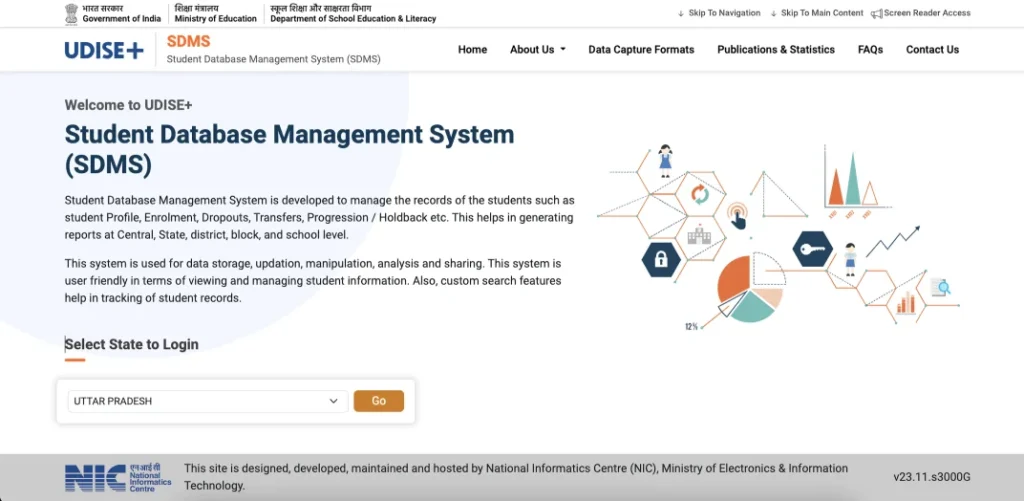
If your tasks are related to student data, open the Student Module (sometimes called SDMS).
If it’s about school profile, infrastructure, or staff details, open the appropriate module for that section. Each module holds data for that part of the UDISE Plus process.
nce you are in the right module:
- Check for menus or tabs labeled “Pending,” “Incomplete,” “Drafts,” or “Not Submitted.”
- These sections list data entries where submission isn’t complete yet.
For example, in the Student Module, you might see entries where “General Profile (GP), Enrollment Profile (EP),” or “Student Facilities (SF)” sections are not finished.
lick on the item marked as pending. Check which part is incomplete:
- Are some fields left blank?
- Did you forget to save after entering data?
- Did the system show a validation error?
- Are you missing attachments or proof documents?
Work through each item carefully.
Once you see what’s missing:
- Enter the correct information in the empty fields.
- Fix any errors reported by the system.
- Make sure all required fields are filled.
After this, save your changes and submit again.
you can also read about: How to Correct Student Details in UDISE+ Without Losing Data
After you correct and complete all pending entries:
- Click Submit within the module.
- If your system has a “Review and Finalize” button, use it before the final deadline.
- Keep checking the module to confirm there are no more pending items.
When everything’s submitted, the system stops listing it as pendin
Tips That Make Tracking Easier
Here are practical tips to make tracking pending submissions easier:
Use the Dashboard Early and Often
Check your UDISE Plus dashboard right when you log in. Pending tasks usually appear there before deadlines.
Complete One Section at a Time
Instead of entering a little and leaving it, try to finish a section entirely in one go. This reduces pending items.
Save Before You Exit
Always save work before logging out. Unsaved entries often become pending drafts.
Ask Block/District Coordinators for Help
If you don’t see pending entries but you think something is missing, your district or block MIS coordinator can help cross‑check backend status.
Finish Work Before Deadlines
UDISE Plus has fixed submission windows each year. Complete your pending data a few days before deadlines to avoid last‑minute rush and errors.
FAQ’s
Final Words
Tracking pending data submissions in UDISE Plus is something you can do easily if you know where to look. Always use the dashboard to spot pending tasks, finish data entry fully, and submit before the final deadline. This ensures your school’s information is complete and error‑free when the year’s data closes.
By following this step‑by‑step approach, you can stay organized, avoid last‑minute stress, and ensure your data is ready when needed.


