How to Correct School Category in UDISE Plus Profile
If you’re in charge of school data and you’ve spotted that the “School Category” in your UDISE Plus profile is wrong, don’t worry — we’ve got this. I’ll walk you through what “school category” means, why it matters, how to check it, and how to correct it step by step. By the end you’ll feel confident fixing it (or helping someone else fix it).
What is “School‑Category” in UDISE Plus?
The “school category” refers to the level(s) of education your school offers — such as Primary, Upper Primary, Secondary, Higher Secondary, or combinations. Education for All in India+3DelE Education Department+3Education for All in India+3
Choosing the correct category matters because the data‑capture format adjusts, funding and resources may depend on it, and the national database uses the category to classify your school. Education for All in India+1
Why Having the Right Category Matters
How to Check Your School Category (Quick Audit)
Here’s a friendly quick‑audit you can do:
- Log into your UDISE Plus school‑profile module (with your UDISE code + credentials). udiseplus.co.in+1
- Navigate to School Profile / Basic Profile section (sometimes marked Section 1A or similar).
- Find the field for School Category / Level(s) of Education. (In older DCFs it may read “School Nomenclature/Category (code)”.) DelE Education Department+1
- Match the category listed with what your school actually offers (for example: if you run Classes 1‑10, you’re Primary + Secondary; if only 1‑5, you’re Primary; if 6‑8, you’re Upper Primary).
- See if there’s a mismatch. If yes — time to correct.
How to Correct the School Category (Step‑by‑Step)
Here’s how you can change the category in UDISE Plus. Steps may vary slightly state‑to‑state but the idea is the same:
- Your recognition letter / affiliation certificate showing the classes you’re running.
- School structure documents showing whether you offer Primary, Upper‑Primary, Secondary, etc.
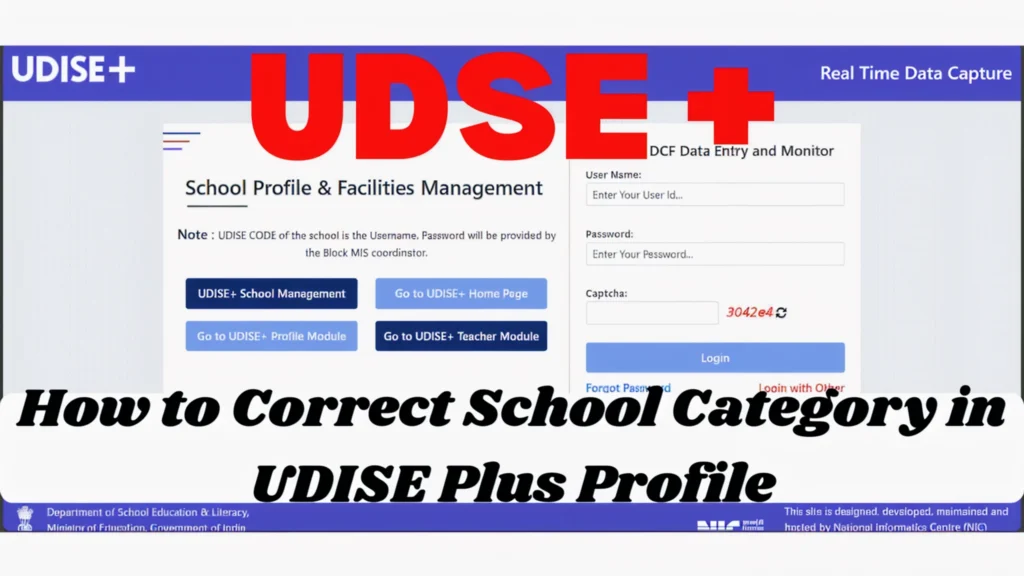
Use your school’s UDISE code + password to log into the “School Profile & Facilities Management” module. udiseplus.co.in
Locate the Basic Profile page where “School Category/Level(s) of Education” is listed.
Change the category code to the correct one. For example, switch from “Primary only” to “Primary + Upper Primary” if you teach up to Class 8.
Save the changes.
Some states require you to upload the recognition or affiliation proof when changing category.
If a field is locked (you cannot edit), you may need to request help from your block/district MIS cell.
After editing, submit the profile for approval (if required).
Monitor if the status changes to approved in the next data cycle.
After the update, check next time you log that the category shows correctly.
Do a quick check during next data submission to ensure the correct form version appears (based on category).
Pro Tips to Make It Easy
Update the category before entering other data in that academic year — a wrong category may lead to wrong forms.
Keep a digital folder of your recognition/affiliation documents — you’ll save time when state MIS asks for proof.
Train someone in your school to check the category every year, so you don’t rely on one person only.
If you changed the structure of your school (e.g., you added Classes 6‑8), update category promptly rather than waiting.
Maintain screenshots of the “before” and “after” profile for your records — helpful if someone questions later.
FAQ’s
Final Words
Fixing your school category in UDISE Plus is a simple but essential task that can have a big impact on your school’s data accuracy, funding, and reporting. By taking a few minutes to review and correct the category each year, you’re ensuring that your school remains in the right classification and avoids any future discrepancies. This small step can save you from future complications, like filling out the wrong forms or delays in receiving necessary resources.
Remember, keeping your UDISE Plus profile up-to-date isn’t just a one-time task. It’s a regular part of maintaining your school’s information. Be proactive about checking the category, especially if there have been changes in your school’s class offerings or structure. Whether your school has added new levels or changed management, updating the profile helps ensure that everything aligns with official records.
Taking control of your school’s profile now means fewer issues in the future, allowing your school to focus on what truly matters: delivering quality education. Also, don’t hesitate to reach out to your district or state MIS office if you encounter any locked fields or issues beyond your control. They’re there to support you.
If you follow these simple steps, you’ll keep everything running smoothly, and your school’s profile will be correctly categorized in UDISE Plus. If you ever need assistance, don’t hesitate to revisit these tips or contact the necessary authorities to help you through the process.
Lastly, I encourage you to share this guide with your team. Having more eyes on the task ensures that the updates are accurate and up-to-date. Let’s keep our school profiles as sharp and correct as possible!