Handling Aadhaar Data Errors in UDISE+ Profile Update 2026
Updating student profiles in UDISE+ is important for accurate data and verification. However, Aadhaar data errors are common and can create confusion, especially when the details don’t match. This guide will help you understand how Aadhaar data errors happen, how they affect student records, and how to fix them.
Why Aadhaar Data is Crucial in UDISE+?
Aadhaar data plays a key role in UDISE+ for:
When Aadhaar details are incorrect or not verified, it can cause several issues in the system, which can stop students from receiving benefits and cause delays in updating school records.
Common Aadhaar Errors in UDISE+
Here are some of the most common Aadhaar errors that schools face when updating records in UDISE+:
The Aadhaar number entered in the UDISE+ system might not match the official Aadhaar number. This often happens due to simple typographical errors.
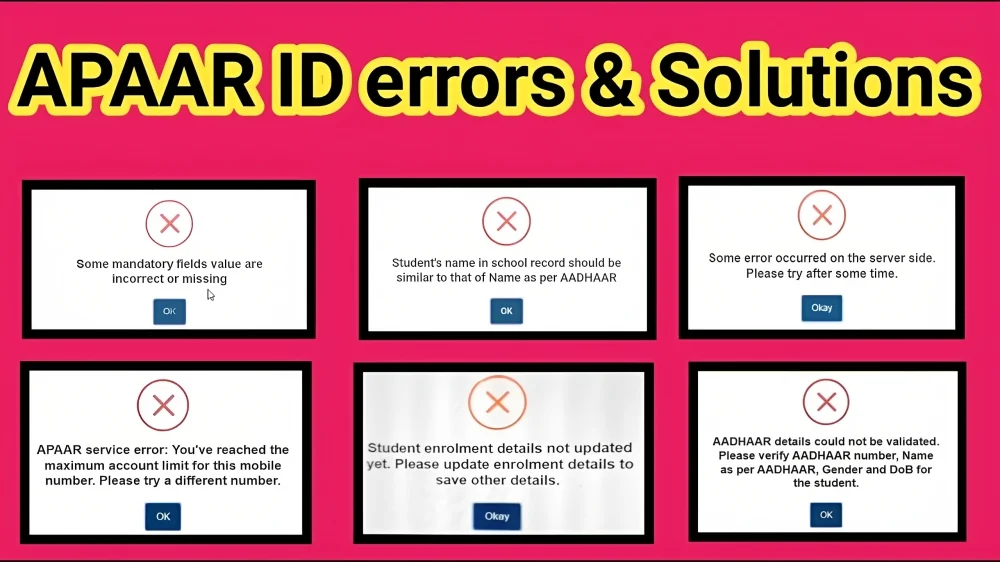
Aadhaar verification might fail if the student’s name in the UDISE+ system doesn’t match exactly with the name on the Aadhaar card. Even small differences like spelling variations or extra spaces can cause an issue.
Sometimes, the system doesn’t verify the Aadhaar details properly due to network issues, incorrect details, or expired data. This can prevent you from generating the APAAR ID or completing other processes.
What Happens if Aadhaar Data Errors Aren’t Fixed?
If Aadhaar data errors are left unresolved in UDISE+, students may face several issues:
These problems can delay the process of updating student records and even impact the school’s ability to access important services.
How to Correct Aadhaar Data Errors in UDISE+?
Correcting Aadhaar errors in UDISE+ requires a step-by-step approach:
Verify Aadhaar Details Against the Card
Always ensure the Aadhaar number and the name are typed exactly as shown on the Aadhaar card. Any differences can lead to verification failure.
Use the “Aadhaar Verification” Tool
Most UDISE+ systems provide an Aadhaar verification tool. Use this tool to check if the details entered are correct. If the system fails, check if there are any biometric issues or other factors affecting verification.
Contact Your MIS Coordinator for Help
If you are unable to correct the Aadhaar details directly, reach out to your Block or District MIS Coordinator. They have access to the backend tools that can update student records when errors occur.
Keep All Necessary Documents Ready
When contacting your MIS team, make sure you have a copy of the student’s Aadhaar card and any other supporting documents to verify the details.
you can also read about: Why UDISE Plus Shows Student Out of School Due to Aadhaar 2025
Practical Tips for Avoiding Aadhaar Data Issues
Double-Check Aadhaar Details
Before entering the Aadhaar number, ensure that it is correctly typed. Avoid copying and pasting to minimize errors.
Match Names Exactly
Make sure the name in UDISE+ matches the Aadhaar card exactly — this includes the correct spelling, order, and format.
Update Information Promptly
As soon as you notice an error in Aadhaar details, address it right away. Early action prevents delays in student registration and profile creation.
Ensure Proper Aadhaar Verification
Ensure that the student’s Aadhaar verification process is completed before submitting any updates. If verification is pending, the system may block further updates.
What to Do if Aadhaar Verification Fails?
If Aadhaar verification fails, follow these steps:
FAQ’s
Final Words
Handling Aadhaar data errors in UDISE+ might seem challenging at first, but with the right steps and attention to detail, it becomes much easier to resolve. Always make sure the Aadhaar number and name are entered correctly, and don’t hesitate to reach out to the MIS Coordinator for help when needed. Fixing Aadhaar errors as soon as possible ensures that students remain in the system, receive their rightful benefits, and your school records stay accurate and compliant.
If you ever need extra help, feel free to reach out to your MIS team — they’re there to make sure everything runs smoothly!


