Fixing UDISE+ Login Issues: Invalid UserID & Password
Sometimes when you try to log into the UDISE+ portal, you may encounter errors like “Invalid UserID/Password” or “Login failed” even though you’re sure the credentials are correct. This can stop you from accessing the teacher, student, or school profile module, preventing you from entering or certifying data.
Why this happens
Here are the main reasons behind these login issues:
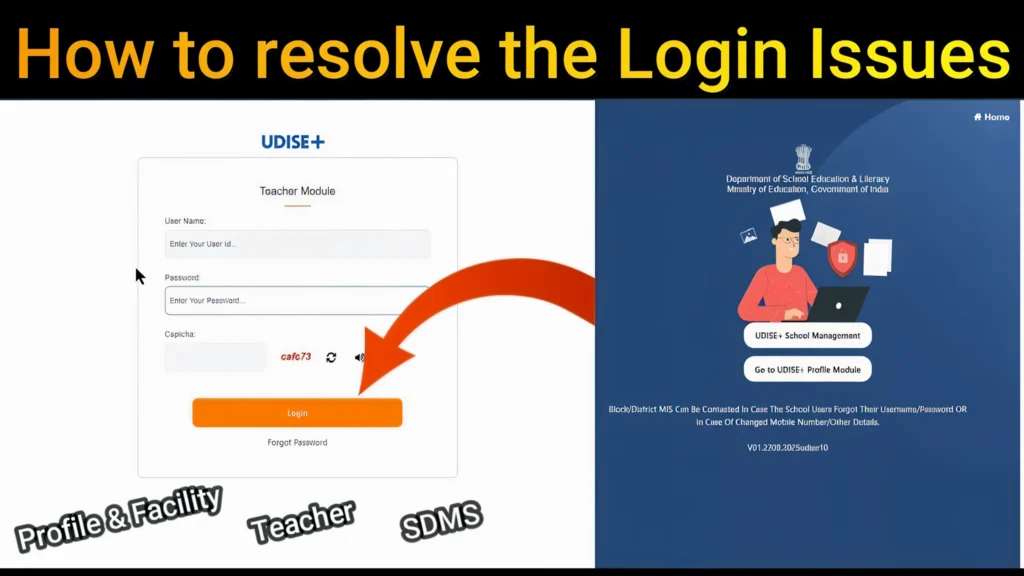
Step-by-step fix: How to resolve UDISE+ login issues
Here’s a simple checklist to follow when facing UDISE+ login issues:
Ensure that you are using the correct UDISE code for your school. UDISE codes usually consist of 11 digits, so if you’re using a 10-digit code, try adding a leading “0” and check again.
Also, verify that you’re choosing the correct state or district from the dropdown menu if applicable.
If you’ve forgotten your password or it’s expired, try using the “Forgot Password” or “Reset Password” feature.
Make sure that the password you’re entering is the one that is currently active. If you recently changed it and didn’t update it everywhere, it could cause issues.
If you’ve changed your mobile number and haven’t updated it in the system, you won’t receive the OTP for login or password reset.
In this case, contact the District MIS coordinator to update your registered mobile number so that you can receive OTPs.
- Sometimes, the issue is as simple as a browser or device problem. Try using a different browser or incognito/private window to log in.
- If that doesn’t work, try clearing your browser cache and cookies to ensure there aren’t any old session details interfering with your login.
- Ensure that the date and time settings on your device are accurate, as sometimes a mismatch can cause issues with captcha or login sessions.
Make sure you are logging into the correct module (Teacher, Student, School Profile, etc.) and that you’re not trying to access the wrong one with incorrect credentials.
If you are trying to access the Teacher Module, ensure you select it and not another module by mistake.
If the above steps don’t work, reach out to your Block or District MIS Coordinator. Send them your school’s UDISE code and details of the error message you’re seeing.
They can check if your account is locked or inactive, and they may be able to reset the password or unlock the account for you.
Pro Tips to Avoid Future Login Problems
FAQ’s
Final Words
Fixing UDISE+ login issues is typically easy, but it can be frustrating if you’re not sure where the problem is coming from. Just follow the steps above, check your username, password, and mobile number, and don’t hesitate to contact your District MIS if needed. By staying proactive and keeping your details updated, you’ll avoid these issues in the future.
Fix your login issues as soon as possible to ensure your school’s data is entered and certified on time. After all, the sooner you get logged in, the sooner you can get your data ready for submission!